How to build a Google Chrome extension
In this article I'll teach you how to build a Chrome extension. Before starting the tutorial we need to be clear on what an extension is. According to the documentation, Chrome extensions are software built with web technologies that let users customize their browsing experience.
Extensions are software programs, built on web technologies (such as HTML, CSS, and JavaScript) that enable users to customize the Chrome browsing experience.
So that's exactly what we'll do: interact with our browsing experience. Specifically, we'll make a YouTube video flip around.
Demo
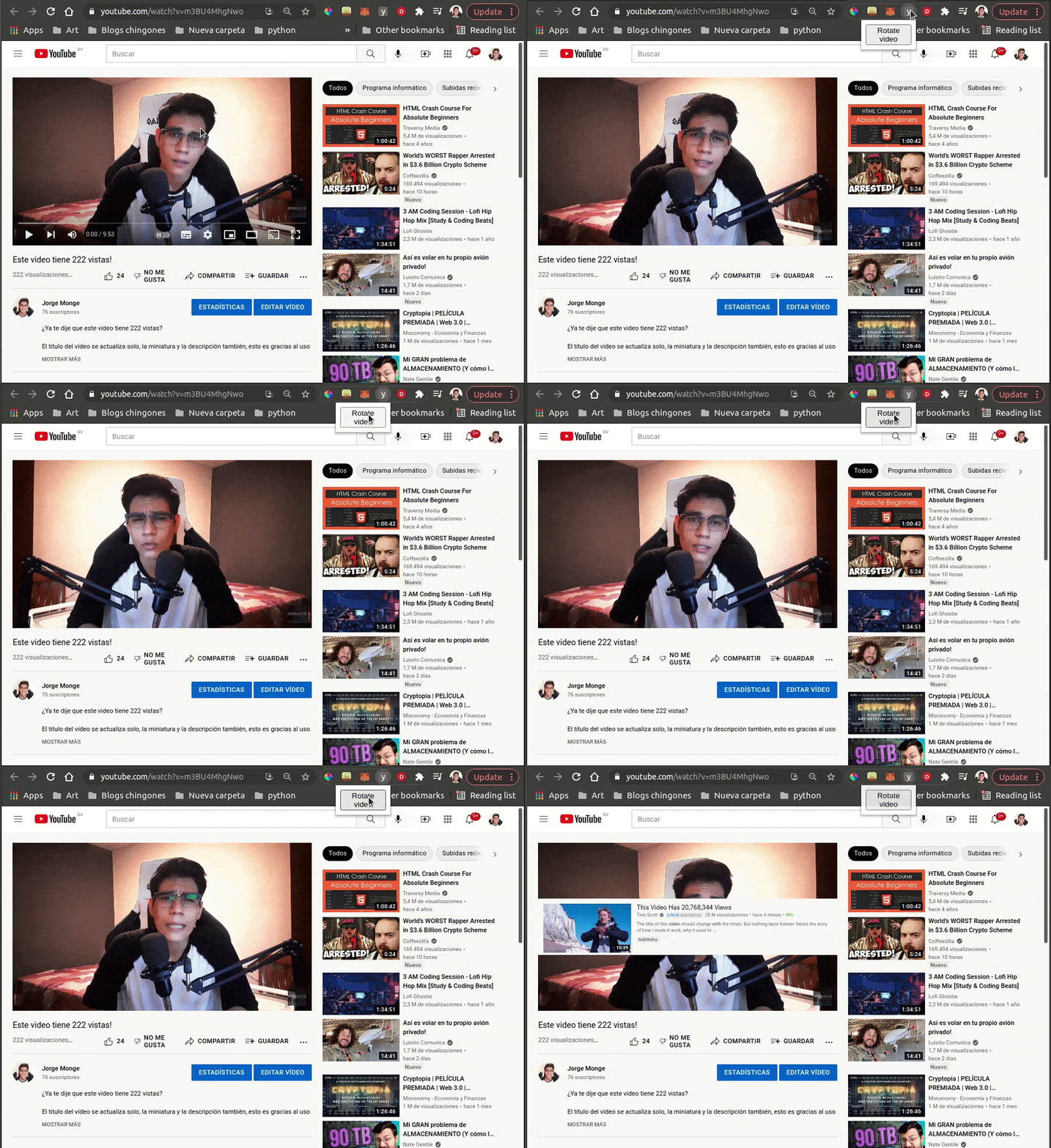
Video: https://www.youtube.com/watch?v=m3BU4MhgNwo
Components of a Chrome extension
- manifest.json: the main file of an extension: here we tell Chrome which files to load, which permissions the extension will have over the browser, and the extension's general metadata.
- popup.html: defines what gets rendered when we click the extension.
- popup.js: holds the logic to interact with popup.html.
- content scripts: files that can interact with the DOM of the browser's active tab.
- background scripts: they have access to all Chrome APIs and can run in the background for as long as the extension exists. Useful, for example, to detect when the user visits a certain page or to store user preferences.
Let's start the tutorial
Our extension will use popups and content scripts, since we only need to interact with the extension's DOM and with the DOM of the active page, in this case, YouTube.
manifest.json
The first thing is creating the manifest.json file, which looks like this:
{
  "manifest_version": 3,
  "name": "yt-video-mirror",
  "description": "Chrome extension that rotates yt videos 180 degrees",
  "version": "1.0",
  "permissions": ["tabs"],
  "action": {
    "default_popup": "popup.html"
  }
}
As I explained earlier, the manifest.json holds the permissions and general metadata of the extension: name, description, version. permissions is an array of the things we want our extension to access, in this case just tabs, and we point it to our popup.
Installing the extension in Chrome
Once we have the manifest.json we can install the extension in our browser:
- First, go to the extensions manager
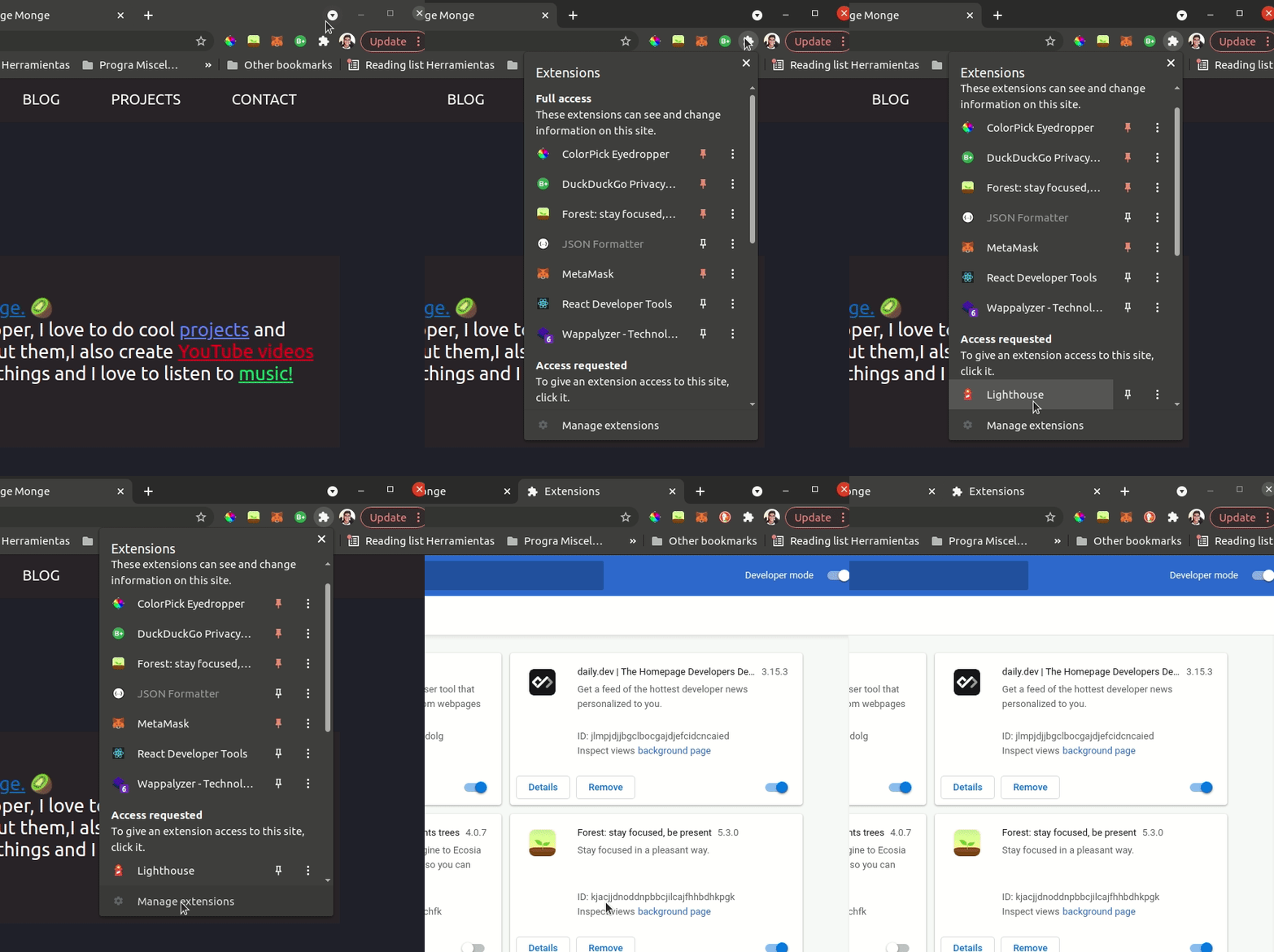
- Then load your extension
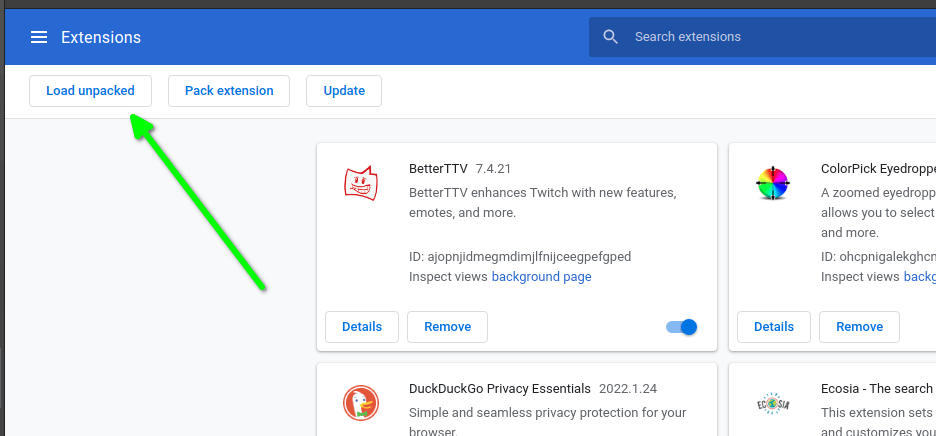
And select the folder where your manifest.json lives:

Now it shows up in our extensions:
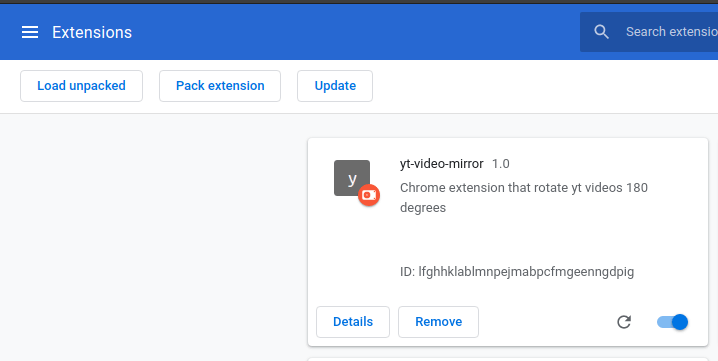
To make it appear next to the other extensions we need to pin it to the toolbar:
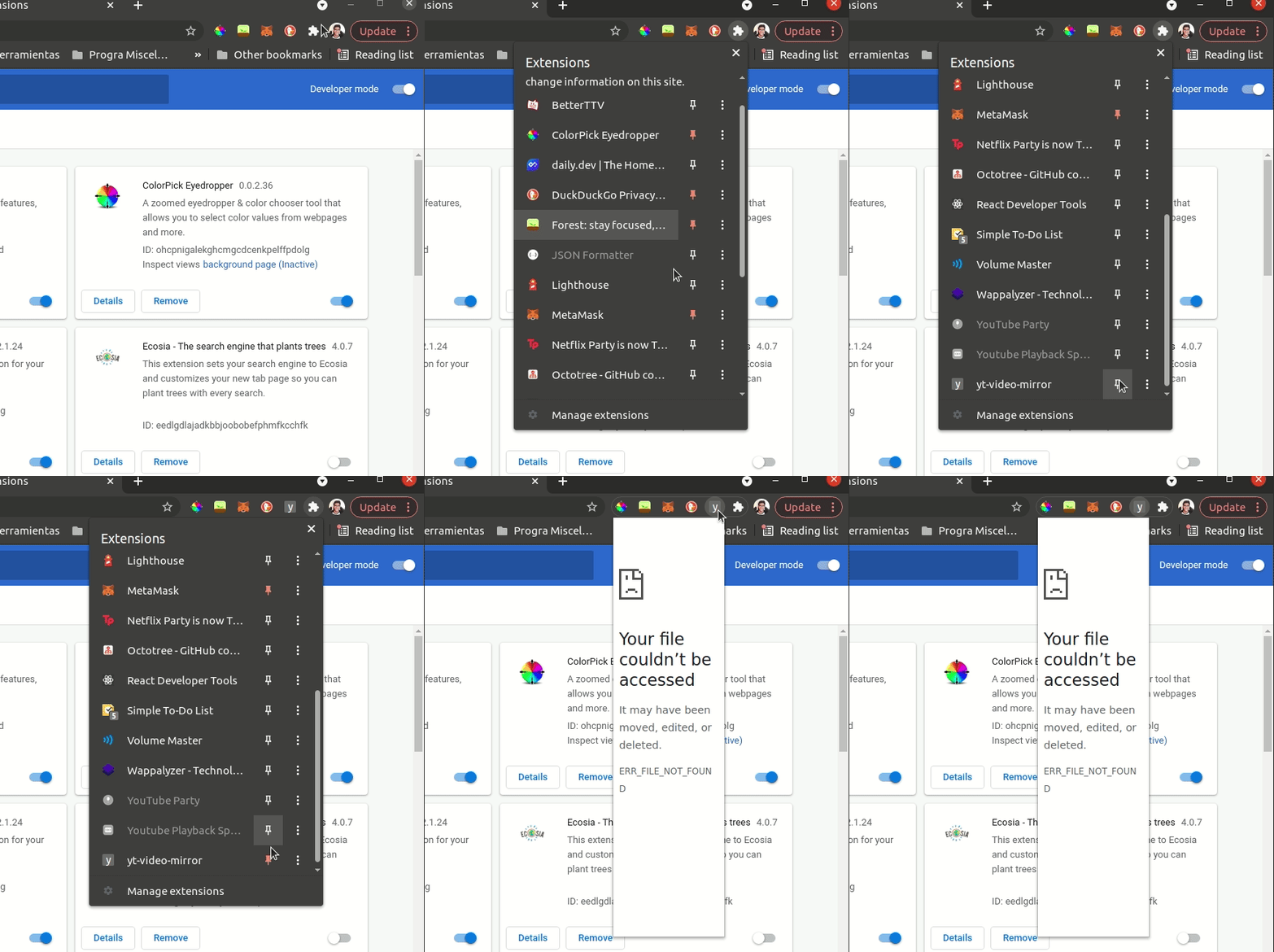
But when we click it we get an error. That's because in the manifest.json we told Chrome it would render a file called popup.html... which we haven't created yet! Let's do that.
popup.html
In this file we create the HTML rendered when the extension is clicked. A simple button will do, so popup.html looks like this:
<!DOCTYPE html>
<head>
  <style>
    body {
      width: 80px;
      text-align: center;
    }
    input {
      height: 20px;
      width: 50px;
      outline: none;
    }
    label {
      width: 50px;
      font-weight: bold;
    }
  </style>
</head>
<body>
  <button id="rotateVideoButton">Rotate video</button>
  <script src="./popup.js"></script>
</body>
</html>
Notice our popup.html references popup.js, so let's create that too:
let button = document.getElementById('rotateVideoButton')
button.addEventListener('click', rotate)

function rotate() {
  alert('Hi')
}
We grab the button and add a listener so that clicking it fires an alert. But we'll notice something: the alerts from our button look different from the alerts we can fire from the browser console.
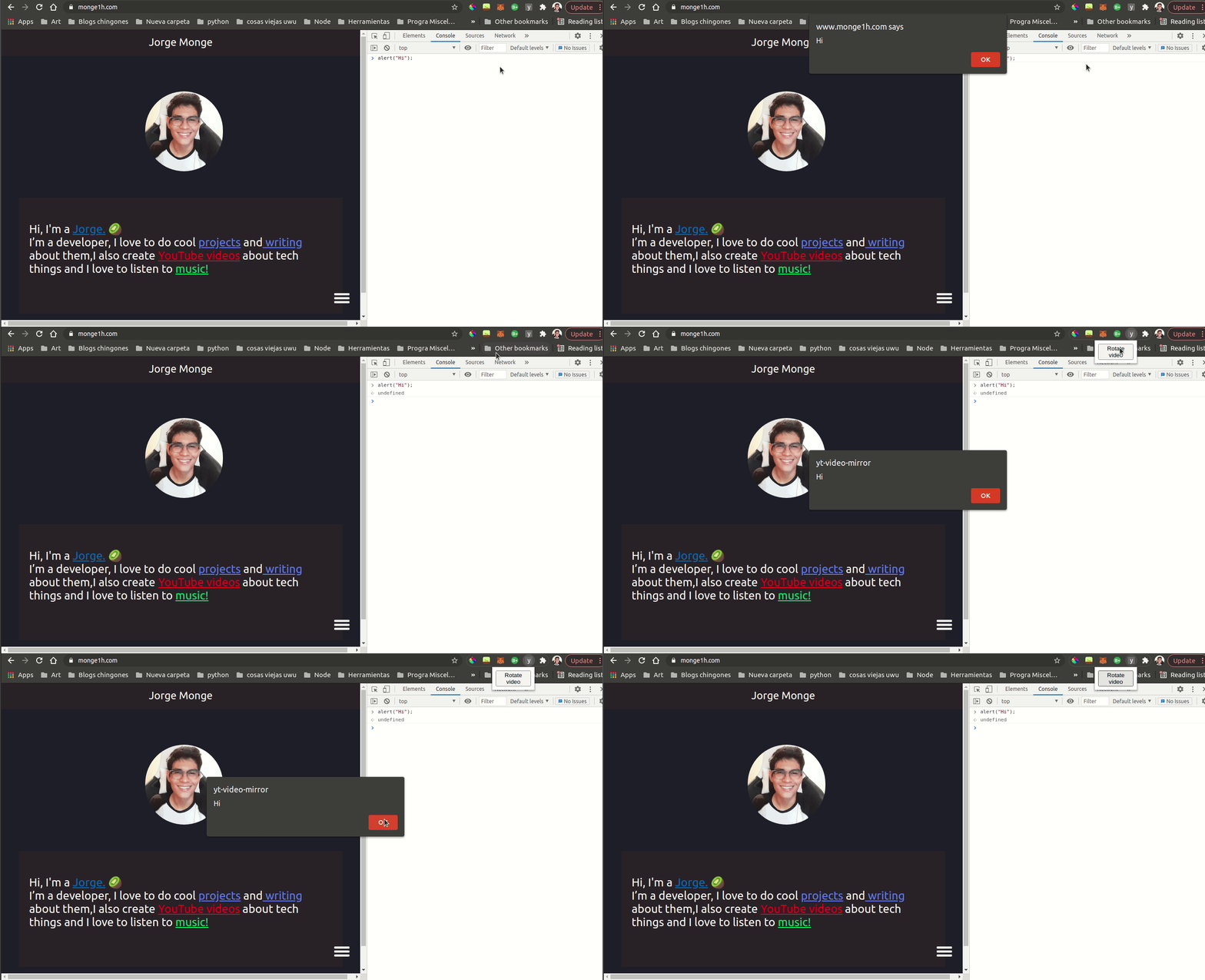
That's because everything we do from popup.js operates on the DOM of popup.html, and that doesn't work for us: we want to interact with the DOM of the YouTube page to rotate the videos. That's what content scripts are for: they connect the extension with the DOM of the active tab. Let's create ours.
Content scripts
To use content scripts we need to declare them in the manifest.json, which now looks like this:
{
  "manifest_version": 3,
  "name": "yt-video-mirror",
  "description": "Chrome extension that rotates yt videos 180 degrees",
  "version": "1.0",
  "permissions": ["tabs"],
  "action": {
    "default_popup": "popup.html"
  },
  "content_scripts": [
    {
      "matches": ["http://*/*", "https://*/*"],
      "js": ["contentScript.js"]
    }
  ]
}
We added the content_scripts property: an array of objects, each declaring which URLs the content script runs on and which file implements it. With the manifest updated, we can create the content script.
Content scripts and popup.js communicate through messages. In our contentScript.js we create a function that listens for a message using Chrome's internal APIs:
chrome.runtime.onMessage.addListener(gotMessage)

function gotMessage(message) {
  if (message.action == 'alert') {
    alert('Hi!')
  }
}
With this, contentScript.js waits for messages: if the message object's action property is alert, it fires an alert. Now let's send that message from popup.js when the button is pressed:
let button = document.getElementById('rotateVideoButton')
button.addEventListener('click', rotate)

function rotate() {
  let params = {
    active: true,
    currentWindow: true
  }
  chrome.tabs.query(params, gotTab)

  function gotTab(tabs) {
    chrome.tabs.sendMessage(tabs[0].id, { action: 'alert' })
  }
}
We query the active tabs, Chrome returns the current one at position 0, and send that tab the message with action: "alert" so it generates the alert, this time from the page's DOM, not the popup's.
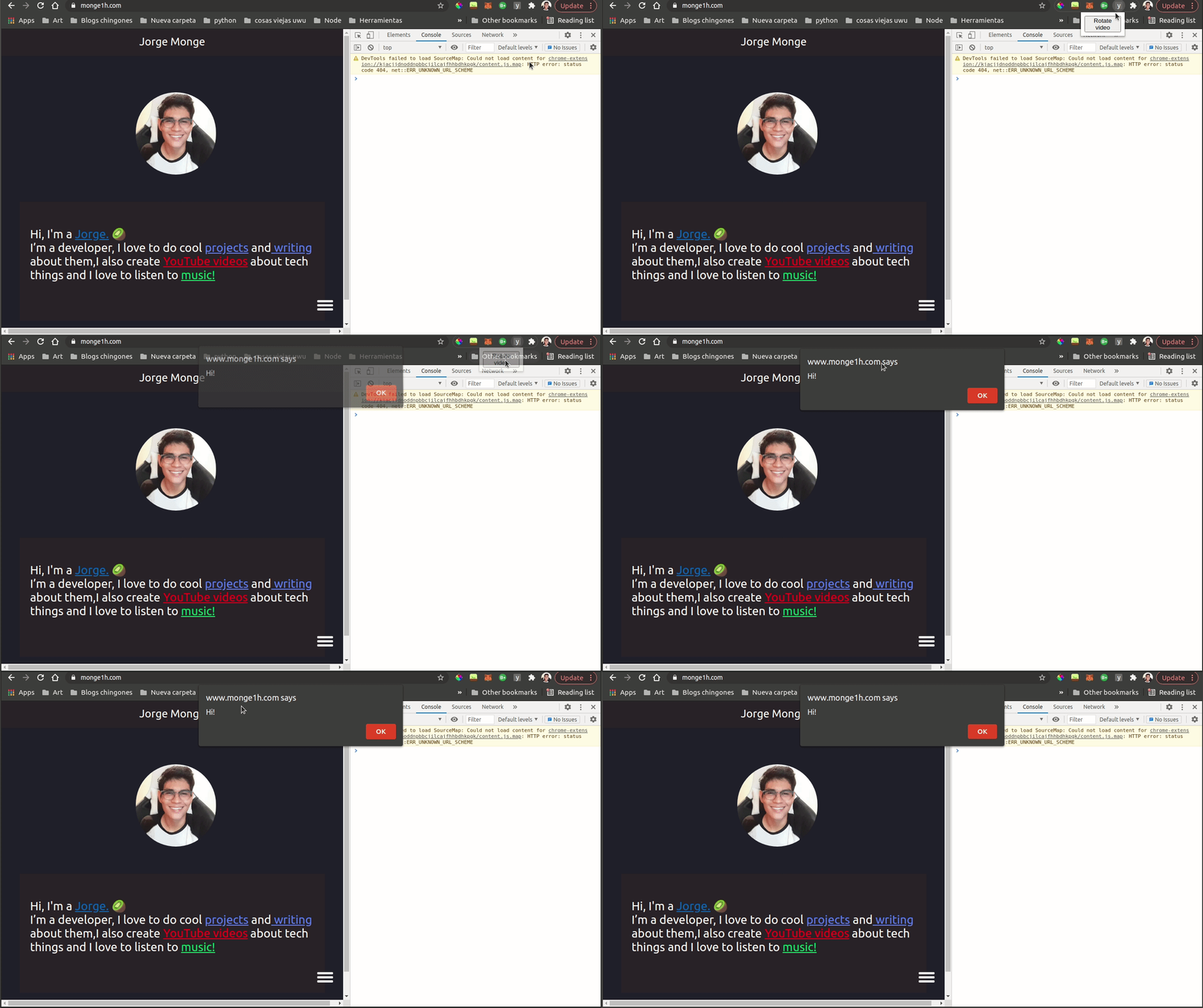
Awesome, the alert now comes from the DOM of the active tab!
Now that we can interact with the active tab's DOM, it's time to figure out how to flip the videos.
With the element inspector we identify which element we need to modify:
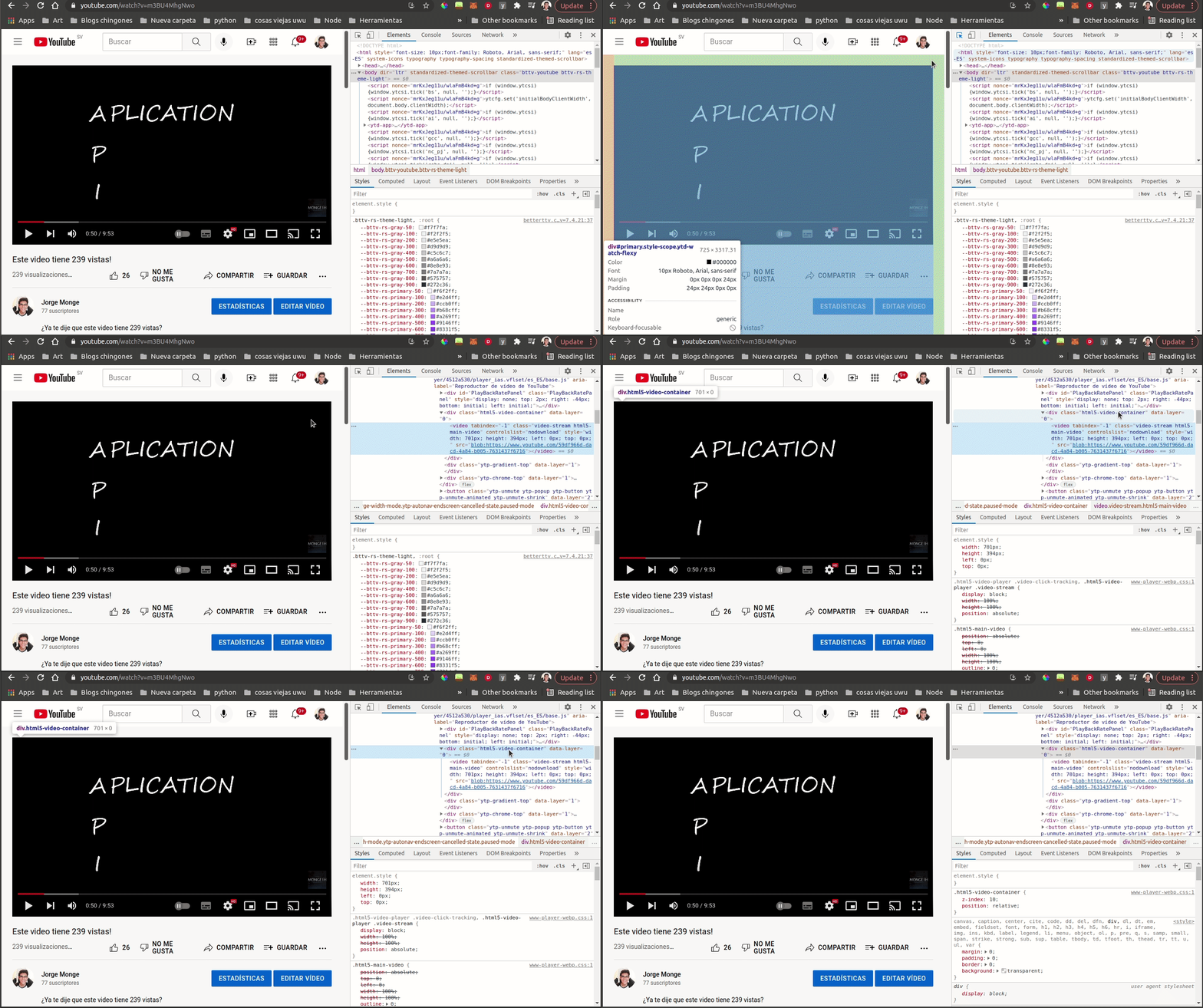
Once we've identified the tag we want to affect, our contentScript.js ends up like this:
chrome.runtime.onMessage.addListener(gotMessage)

function gotMessage(message) {
  if (message.action == 'alert') {
    alert('Hi!')
  } else if (message.action == 'rotate') {
    let video = document.getElementsByClassName('html5-video-container')
    let style = video[0].getAttribute('style')
    if (!style) {
      video[0].setAttribute('style', 'transform: rotateY(180deg)')
    } else {
      video[0].removeAttribute('style')
    }
  }
}
We simply toggle the style property on the tag that contains the video. And in our popup.js we change the message action from alert to rotate:
let button = document.getElementById('rotateVideoButton')
button.addEventListener('click', rotate)

function rotate() {
  let params = {
    active: true,
    currentWindow: true
  }
  chrome.tabs.query(params, gotTab)

  function gotTab(tabs) {
    chrome.tabs.sendMessage(tabs[0].id, { action: 'rotate' })
  }
}
And we got what we wanted, our extension works!
.gif)
Conclusion
Building a Chrome extension is relatively simple, and there's an endless amount of things you could create. It all depends on your creativity!